Why Does Your Phone Overheat While Gaming?
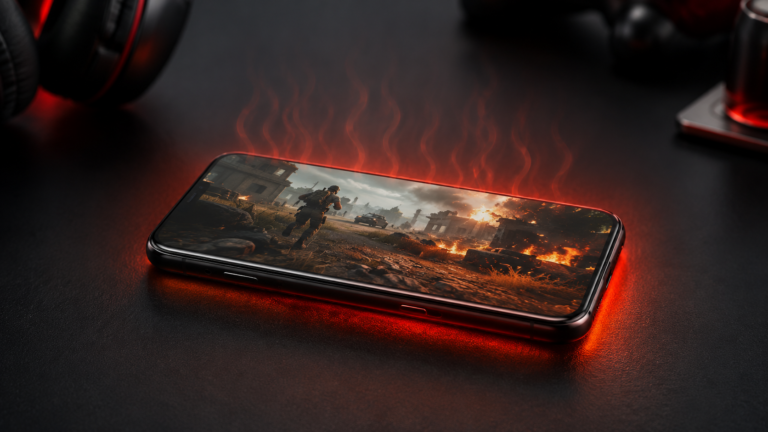
Gaming pushes your phone harder than any other activity. Moreover, the CPU, GPU, and display all run at full power at the same time. As a result, your phone generates heat much faster than it can release it through the back panel.
The Real Cause of Gaming Overheating
Modern mobile games like BGMI, Free Fire, and Call of Duty demand high processing power. Furthermore, bright graphics settings make the display work harder too. In addition, background apps, poor ventilation, and a thick phone case all trap heat inside. As a result, temperature climbs quickly during even short gaming sessions.
Moreover, lithium-ion batteries generate heat when they discharge rapidly under gaming load. Playing while charging doubles the heat load on your phone completely. As a result, charging during gaming is the single biggest cause of overheating in smartphones.
What Happens When a Phone Gets Too Hot
Your phone automatically slows down when it gets too hot. This process is called thermal throttling. Furthermore, throttling reduces CPU speed to lower temperature — which causes lag and frame drops in games. As a result, overheating directly ruins your gaming performance significantly.
Moreover, regular overheating permanently damages the battery capacity over time. In fact, heat above 45 degrees Celsius reduces battery life months ahead of schedule. As a result, a phone that overheats every session loses long-term usability quickly.
💡 Quick Answer: The fastest fixes for phone overheating while gaming are: remove the case, stop charging while playing, lower graphics settings, and close background apps. Moreover, these four steps alone reduce phone temperature by 8–12 degrees Celsius instantly. As a result, you get smoother gameplay immediately without spending anything.
12 Fixes to Stop Phone Overheating While Gaming
- Remove the phone case to allow heat to escape freely
- Stop charging completely while playing games
- Lower graphics and frame rate settings in-game
- Close all background apps before starting
- Turn off Bluetooth, GPS, and mobile data if not needed
- Reduce screen brightness to 50 percent or lower
- Keep the game and OS fully updated always
- Use a phone cooling fan or cooler accessory
- Play in a cool, well-ventilated room only
- Cap the frame rate at 60 FPS instead of 90 or 120
- Clear game cache every week to remove junk files
- Enable battery saver or game mode in phone settings
Fix 1 — Remove Your Phone Case While Gaming
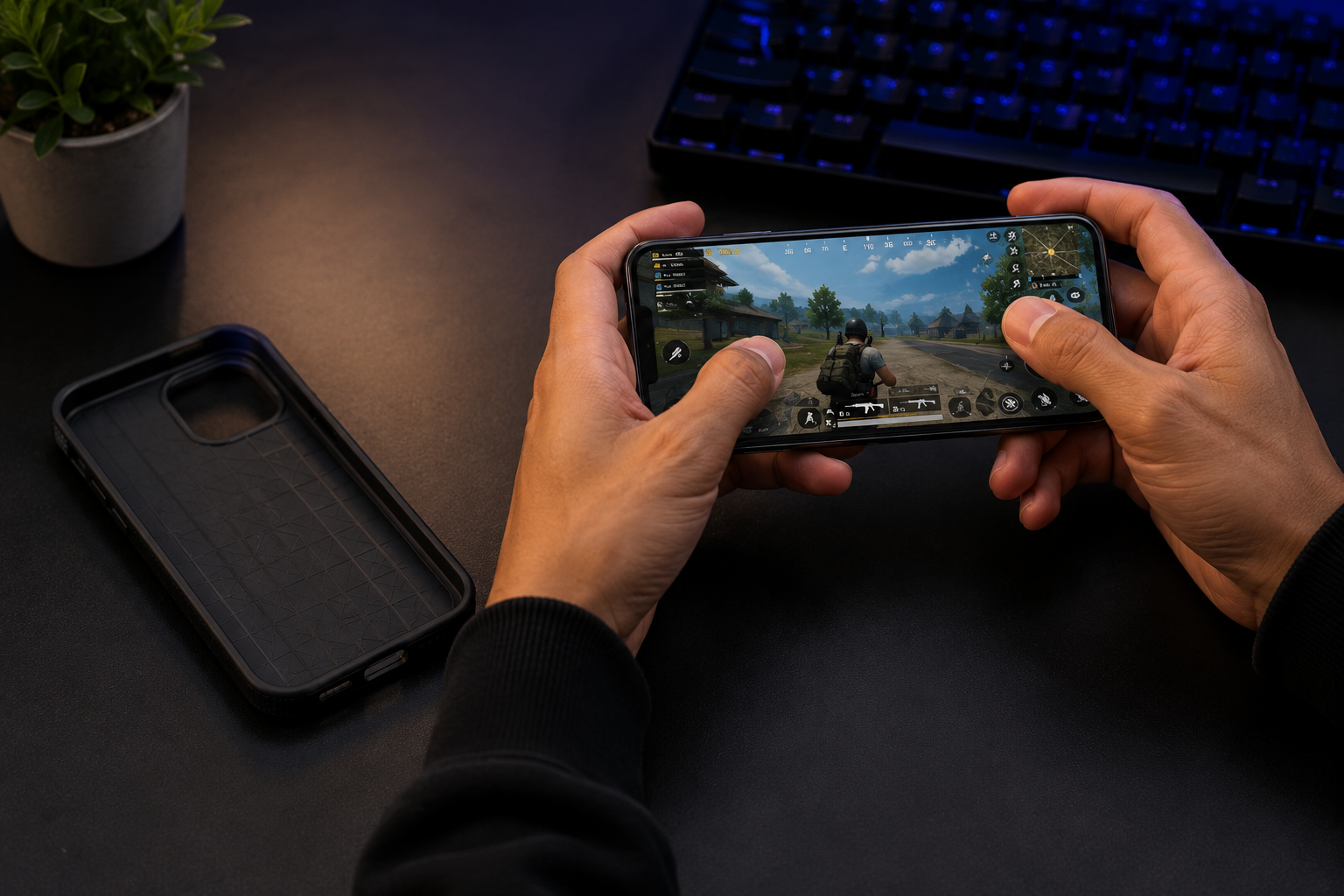
Your phone case traps heat inside the device. Moreover, thick rubber and silicone cases act as insulators that block heat from escaping the back panel. As a result, removing the case is the single fastest fix for an overheating gaming phone.
Remove the Phone Case
🔥 Most Effective Single Fix · Free · Instant · 5–8°C DropWhy the Case Traps Heat
Phone cases cover the back panel, which is the main heat-release surface. Furthermore, thick cases reduce all airflow around the device completely. In addition, dark-coloured cases absorb external heat from sunlight too. As a result, your phone runs several degrees hotter with a case than without one.
What to Do Instead During Gaming
Remove the case before every gaming session completely. Moreover, place the phone on a hard flat surface instead of a soft bed. Furthermore, a flat surface allows air to circulate around the back panel properly. As a result, heat escapes more efficiently and your phone stays cooler throughout.
✓ Why It Works
- Completely free — zero cost
- Works on every phone model
- Instant 5–8°C temperature drop
- No settings changes needed
- Takes zero seconds to do
✗ Watch Out For
- Phone is unprotected without case
- Must remember before each session
Fix 2 — Never Charge Your Phone While Gaming
Charging while gaming doubles the heat your phone produces simultaneously. Moreover, the battery generates heat when charging, and gaming generates additional processor heat. As a result, combining both activities pushes phone temperature to dangerous levels quickly.
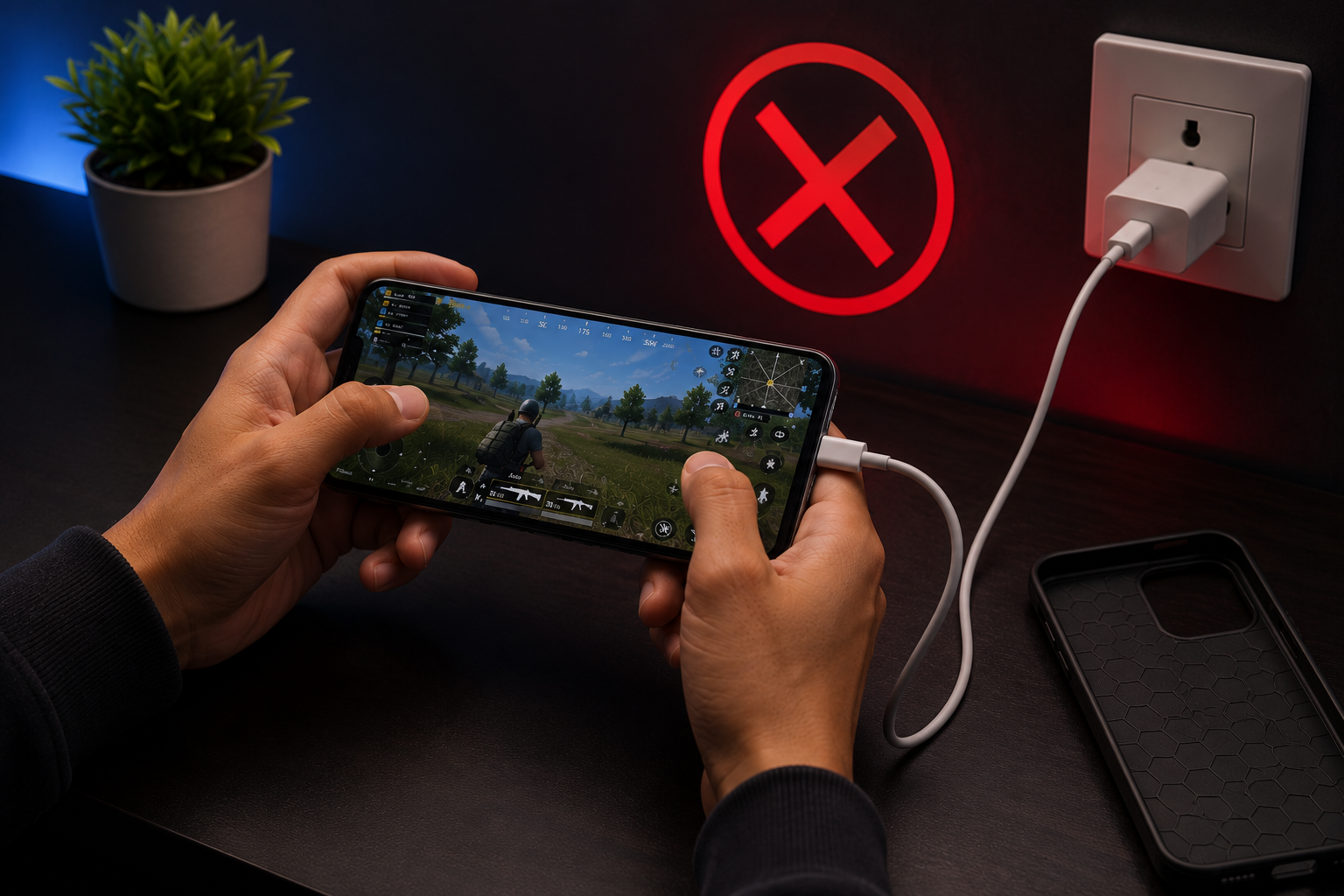
Stop Charging While Playing
🔋 Critical Rule · Prevents Battery Damage · Free Fix · 6–10°C DropWhat Charging Does to Phone Temperature
Charging generates heat in both the battery and the charging circuit simultaneously. Furthermore, gaming at the same time uses the CPU and GPU at high power too. In addition, both processes compete for cooling resources at once. As a result, temperatures during charging-while-gaming can reach 50 degrees Celsius above — which is genuinely dangerous.
The Right Way to Manage Battery for Gaming
Charge your phone to 80–90 percent before starting any gaming session. Then, unplug and game freely without any charger connected. Moreover, avoid gaming when battery falls below 15 percent, as low battery works harder and generates more heat. As a result, managing charge before gaming is the smartest single habit for any mobile gamer.
✓ Why It Works
- Removes dual heat source immediately
- 6–10°C temperature drop instantly
- Extends battery health by months
- Completely free habit change
- Works on every phone ever made
✗ Watch Out For
- Battery drains faster during gaming
- Need to plan charge time in advance
Fix 3 — Lower Graphics Settings in the Game
High graphics settings demand much more from your phone’s GPU. Moreover, Ultra HD textures, shadow effects, and anti-aliasing all increase heat generation significantly. As a result, lowering graphics settings is the most effective software fix to reduce gaming heat.
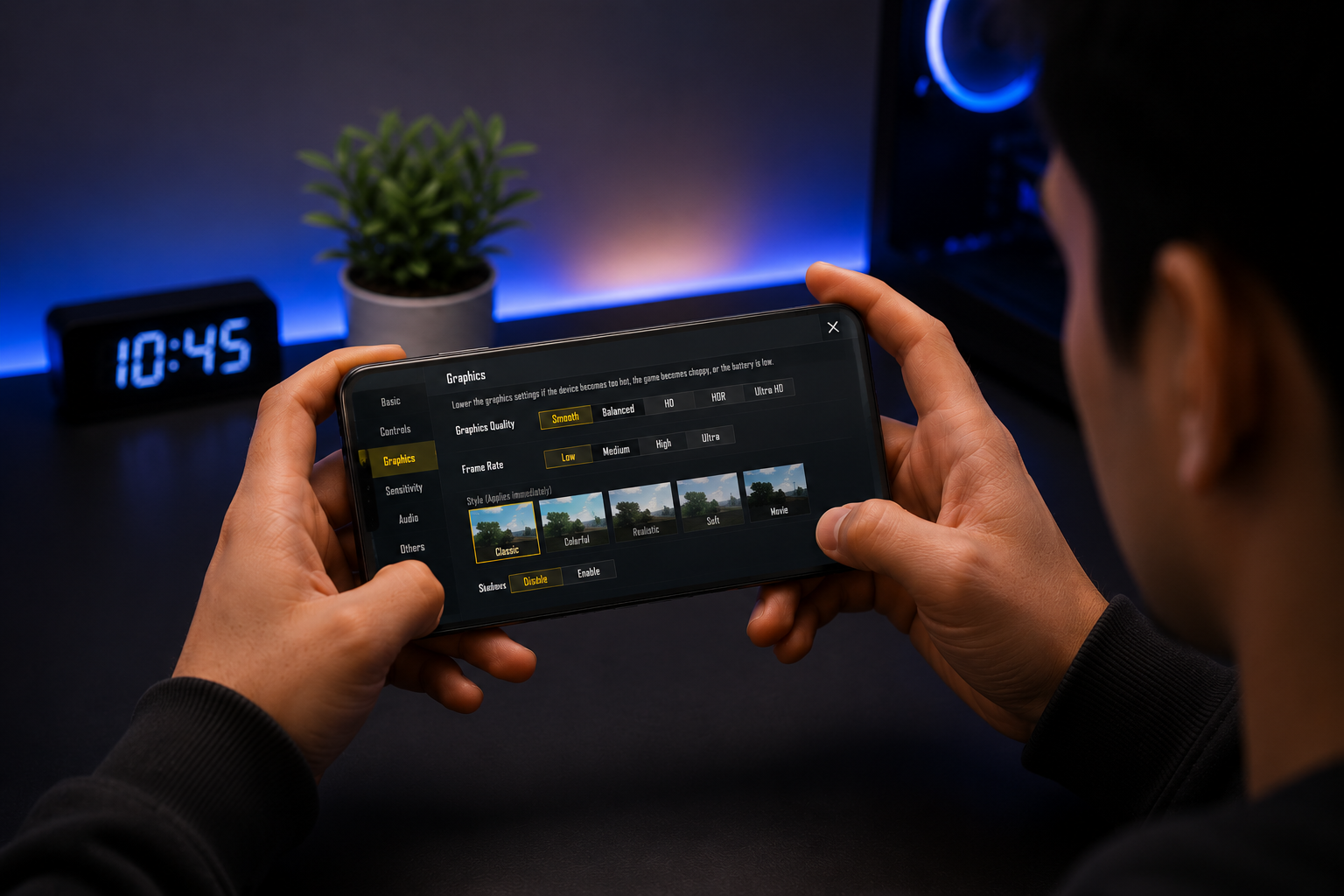
Lower In-Game Graphics Settings
🎮 Performance Fix · Free · Reduces GPU Load · Smoother Gameplay TooWhich Settings to Change First
Open game settings and reduce graphics quality from Ultra or High to Medium or Low. Moreover, turn off shadows, bloom effects, and anti-aliasing first — these are the biggest heat contributors. Furthermore, reducing texture resolution also helps without making the game look terrible. As a result, the phone generates noticeably less heat within minutes of applying these changes.
Best Settings for BGMI, Free Fire, and COD Mobile
In BGMI, set graphics to Smooth and frame rate to High instead of Ultra HD or Extreme. Moreover, in Free Fire, choose Good graphics and Medium frame rate setting. Furthermore, in COD Mobile, set graphics to Low and frame rate to Max for the best heat balance. As a result, you get playable graphics with significantly lower phone temperatures throughout.
✓ Why It Works
- Cuts GPU load by 30–40 percent
- 4–8°C temperature drop
- Completely free setting change
- Also improves frame stability
- Works in all major mobile games
✗ Watch Out For
- Visuals look less sharp
- Need to adjust per-game manually
The 4 Fastest Free Fixes Combined
Applying fixes 1, 2, 3, and 4 together drops phone temperature by 20–28 degrees Celsius cumulatively. Moreover, all four are completely free and take under 5 minutes to apply. As a result, this combination beats most paid cooling accessories for the majority of phones.
Furthermore, these four fixes work together as a system. In addition, each one removes a different source of heat simultaneously. As a result, the combined effect is significantly larger than any single fix alone.
Fix 4 — Close All Background Apps Before Gaming
Background apps use CPU power even when the screen shows your game. Moreover, some apps constantly refresh in the background without you knowing. As a result, closing all background apps before gaming frees resources and reduces overall phone heat.
Press the recent apps button and swipe away every open app. Moreover, go to Settings then Battery then Background App Restriction and disable auto-refresh for social apps. Furthermore, turn off auto-sync for Gmail, Instagram, and WhatsApp. As a result, your phone dedicates all CPU power to the game and nothing else.
Swipe up from the bottom and hold briefly to see all open apps. Moreover, swipe each app card upward to close it completely. Furthermore, go to Settings then General then Background App Refresh and turn it off globally. As a result, iOS stops all background CPU activity during your gaming sessions automatically.
Fix 5 — Turn Off Features You Do Not Need While Gaming
Bluetooth, GPS, NFC, and mobile data all drain battery and generate heat when active. Moreover, most mobile games do not need these features running at all. As a result, turning them off before gaming is a simple but effective temperature fix.
Which Features to Disable Before Every Session
Turn off Bluetooth if you use wired earphones or play without audio. Moreover, disable GPS unless your specific game requires location access. Furthermore, switch off NFC, hotspot, and background sync from the quick settings panel. As a result, these small changes reduce power consumption and heat generation during gaming meaningfully.
Using Airplane Mode for Offline Games
Some offline games work perfectly in airplane mode without any issues. Moreover, airplane mode disables all radios — Wi-Fi, mobile data, Bluetooth, and GPS — at once. Furthermore, this drops power consumption significantly and reduces heat by 3–5 degrees. As a result, offline gaming in airplane mode is consistently cooler than online gaming on full connectivity.
Fix 6 — Reduce Screen Brightness While Gaming
Your screen is the largest power consumer in your phone. Moreover, at maximum brightness, the display generates significant heat independently of the CPU. As a result, reducing brightness is one of the most underrated gaming overheating fixes available.
How Much to Reduce Brightness for Gaming
Set screen brightness to 40–60 percent during all indoor gaming sessions. Moreover, turn off auto-brightness, as it often pushes the screen to maximum unnecessarily. Furthermore, enabling Dark Mode in phone settings reduces display power across system menus. As a result, your screen generates less heat throughout the entire gaming session consistently.
Does Reducing Brightness Affect Gameplay Visibility
In indoor environments, 50 percent brightness is more than enough to see everything clearly. Moreover, many professional mobile gamers actually play at 50–60 percent brightness to reduce eye strain. Furthermore, gaming in a slightly darker room allows lower brightness without affecting visibility at all. As a result, this fix has almost no downside for indoor gaming sessions.
Fix 7 — Keep Your Game and Phone OS Updated Always
Outdated games and operating systems often contain bugs that cause excessive battery drain. Moreover, developers regularly release updates that fix performance issues and reduce CPU usage. As a result, keeping everything updated is one of the easiest long-term overheating fixes available.
Why Updates Directly Reduce Overheating
Game developers optimise their code with every update to reduce GPU and CPU usage. Furthermore, OS updates often include specific thermal management improvements. In addition, security patches sometimes fix background processes that drain power unnecessarily. As a result, an updated phone and game always runs cooler than an outdated one does.
How Often to Check for Updates
Check for game updates every week in the Play Store or App Store. Moreover, install OS updates within a few days of their release. Furthermore, enable automatic overnight updates so games update while you sleep. As a result, your phone always runs on the most optimised and efficient version possible.
Fix 8 — Use a Phone Cooling Fan or Cooler
Phone cooling fans attach to the back of your device and actively cool it during gaming. Moreover, semiconductor coolers use a Peltier chip to pull heat directly away from the phone. As a result, they deliver the largest single temperature drop of any solution on this list.
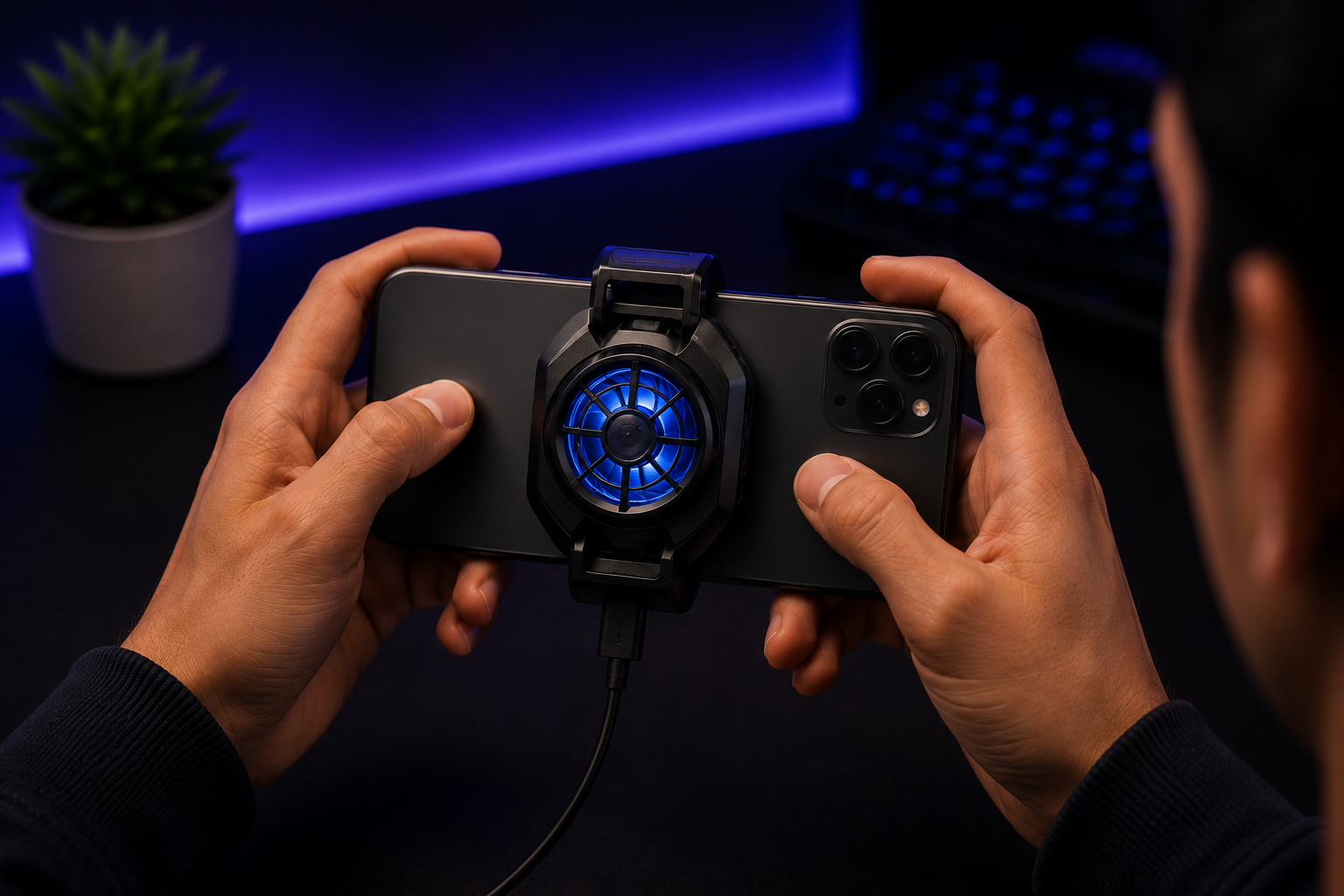
Phone Cooling Fan or Cooler Accessory
❄ Best Accessory Fix · Active Cooling · 8–15°C Drop · From ₹500Best Phone Coolers Available in India 2026
The Black Shark Magnetic Cooler 4 Pro is the best premium option at around ₹3,000. Moreover, the Flydigi Wasp X3 is a more affordable choice at around ₹1,200. Furthermore, basic phone cooling fans on Amazon India start from just ₹500 and work reasonably well for casual gamers. As a result, there is a cooler option available for every budget level.
Semiconductor Coolers vs Basic Fans
Basic fans blow air across the back panel for passive cooling assistance. However, semiconductor Peltier coolers actively transfer heat away from the phone. Moreover, Peltier coolers maintain stable temperatures even during long 2–3 hour sessions. As a result, serious daily gamers should invest in a Peltier-based cooler for the best long-term results.
✓ Why It Works
- 8–15°C drop during active gaming
- Works automatically without effort
- Options from ₹500 to ₹3,000
- Clips on and off in seconds
- Best single accessory for gamers
✗ Watch Out For
- Costs money unlike free fixes
- Needs USB power to operate
- Basic fans less effective than Peltier
More Effective Fixes to Stop Phone Overheating
These final four fixes are equally important. Moreover, combining them with the first eight gives you the maximum possible temperature reduction. As a result, your phone stays cool even during long gaming sessions.
Fix 9 — Play in a Cool Room
Gaming in a hot room or direct sunlight adds external heat to internal heat. Moreover, always place your phone on a hard flat surface for better ventilation. Furthermore, a ceiling fan directed at your gaming area reduces ambient temperature. As a result, room environment alone affects phone temperature by 3–6 degrees Celsius.
Fix 10 — Cap FPS at 60
Running games at 90 or 120 FPS pushes your GPU much harder every second. Moreover, reducing from 90 to 60 FPS cuts GPU workload by roughly 30 percent. Furthermore, the difference between 60 and 90 FPS is barely noticeable during gameplay. As a result, capping FPS at 60 drops temperature by 4–7 degrees Celsius immediately.
Fix 11 — Clear Game Cache
Corrupted cache files force your game to work harder than necessary. Moreover, go to Settings then Apps then Storage and tap Clear Cache for each game. Furthermore, do this weekly for your most-played games consistently. As a result, the game processes fresh data efficiently and generates 1–3 degrees less heat.
Fix 12 — Enable Game Mode
Samsung Game Launcher, Xiaomi Game Turbo, and OnePlus Gaming Mode all optimise CPU usage. Moreover, they block notifications and limit background apps automatically. Furthermore, enabling game mode before playing takes just one tap. As a result, built-in game mode reduces CPU background load by 20–30 percent immediately.
All 12 Fixes — Temperature Drop Comparison
Use this table to see which fixes give the most cooling per effort. Moreover, combining multiple fixes gives cumulative results. As a result, using 5–6 fixes together can drop your phone temperature by 20–30 degrees Celsius total.
| # | Fix | Temp Drop | Cost | Difficulty | Speed |
|---|---|---|---|---|---|
| 1 | Remove Phone Case 🏆 Fastest Free Fix | 5–8°C | Free | Easy | Instant |
| 2 | Stop Charging While Gaming 🔥 Biggest Impact | 6–10°C | Free | Easy | Instant |
| 3 | Lower Graphics Settings 🎮 Best Software Fix | 4–8°C | Free | Easy | 1 min |
| 4 | Close Background Apps | 3–5°C | Free | Easy | 1 min |
| 5 | Disable Unused Features | 2–4°C | Free | Easy | 30 sec |
| 6 | Reduce Screen Brightness | 2–4°C | Free | Easy | 10 sec |
| 7 | Update Game and OS | Variable | Free | Easy | 5 min |
| 8 | Phone Cooling Fan ❄ Best Accessory | 8–15°C | ₹500+ | Easy | Instant |
| 9 | Play in Cool Room | 3–6°C | Free | Easy | Instant |
| 10 | Cap FPS at 60 | 4–7°C | Free | Easy | 1 min |
| 11 | Clear Game Cache | 1–3°C | Free | Easy | 2 min |
| 12 | Enable Game Mode | 3–6°C | Free | Easy | 1 tap |
💡 Best Free Combination for Maximum Cooling
Combining fixes 1, 2, 3, 4, 6, and 10 together drops phone temperature by 20–30 degrees Celsius cumulatively. Moreover, all six are completely free and take under 5 minutes to apply. As a result, this combination works better than most paid cooling accessories for most phones.
Final Verdict — Stop Phone Overheating While Gaming
Phone overheating while gaming is completely fixable. Moreover, most solutions are free and take under 2 minutes to apply. As a result, there is no reason to keep suffering through lag and frame drops from overheating.
Frequently Asked Questions — Phone Overheating While Gaming
Why does my phone overheat while gaming?
Is it bad to play games when your phone is hot?
What temperature is too hot for a gaming phone?
Does charging while gaming overheat the phone?
How do I cool my phone down fast right now?
Does a phone cooling fan actually work?
Should I use battery saver mode while gaming?
Can clearing game cache help with overheating?
❤️ You May Also Like
More phone tips and gaming guides for 2026